Your first assistant, step by step
Five steps, from a new account to an assistant anyone can talk to on its own web address.
- 1
Create a free account
app.almyty.com
Sign up with your email. No credit card needed. You can invite colleagues later.
In the app, the Guide at the bottom of the menu shows how far you are and what comes next.
- 2
Connect an AI model
Credentials → Connect a provider
Pick your AI provider, like OpenAI, Anthropic or Google, and paste your key. almyty checks that the key works before it saves it.
If a key does not work, almyty tells you why in one line and links to where you get a new one.
- 3
Connect one of your systems
APIs → Connect an API
Choose the system you want the assistant to use, like your order system. Give almyty the link to its description and its key. Your IT team or the software vendor can give you both.
almyty reads what the system can do and lists every action it found.
app.almyty.com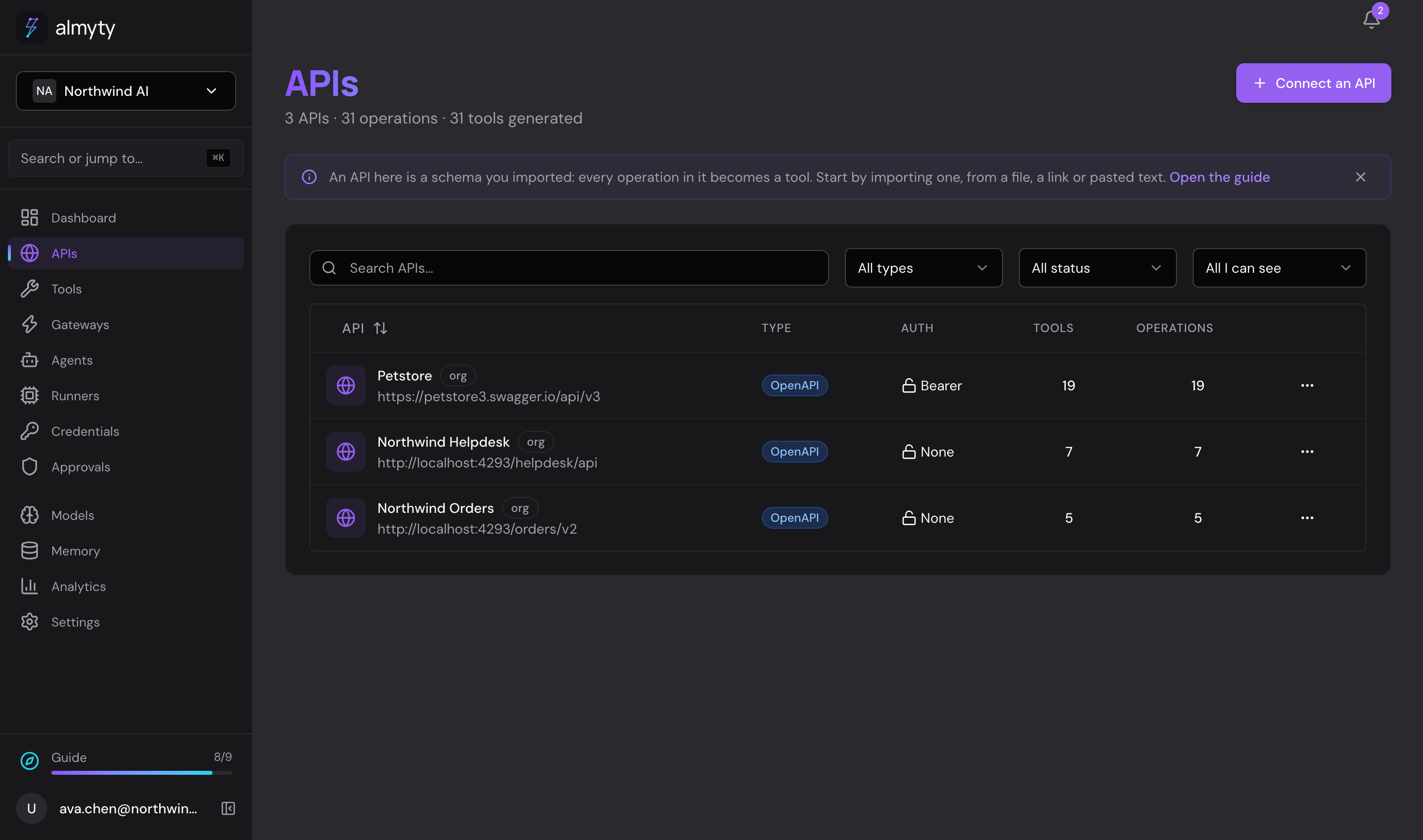
- 4
Build the assistant
Agents → Create agent
Give it a name and describe its job in plain words, for example: "Answer customers about their orders. Always look the order up before you answer."
Choose the actions it may use and the AI model. Click Save, then Activate, and ask it something under Try it, the way a customer would. To keep a person in the loop, add a rule under Settings, such as "Ask before refunds over $500".
app.almyty.com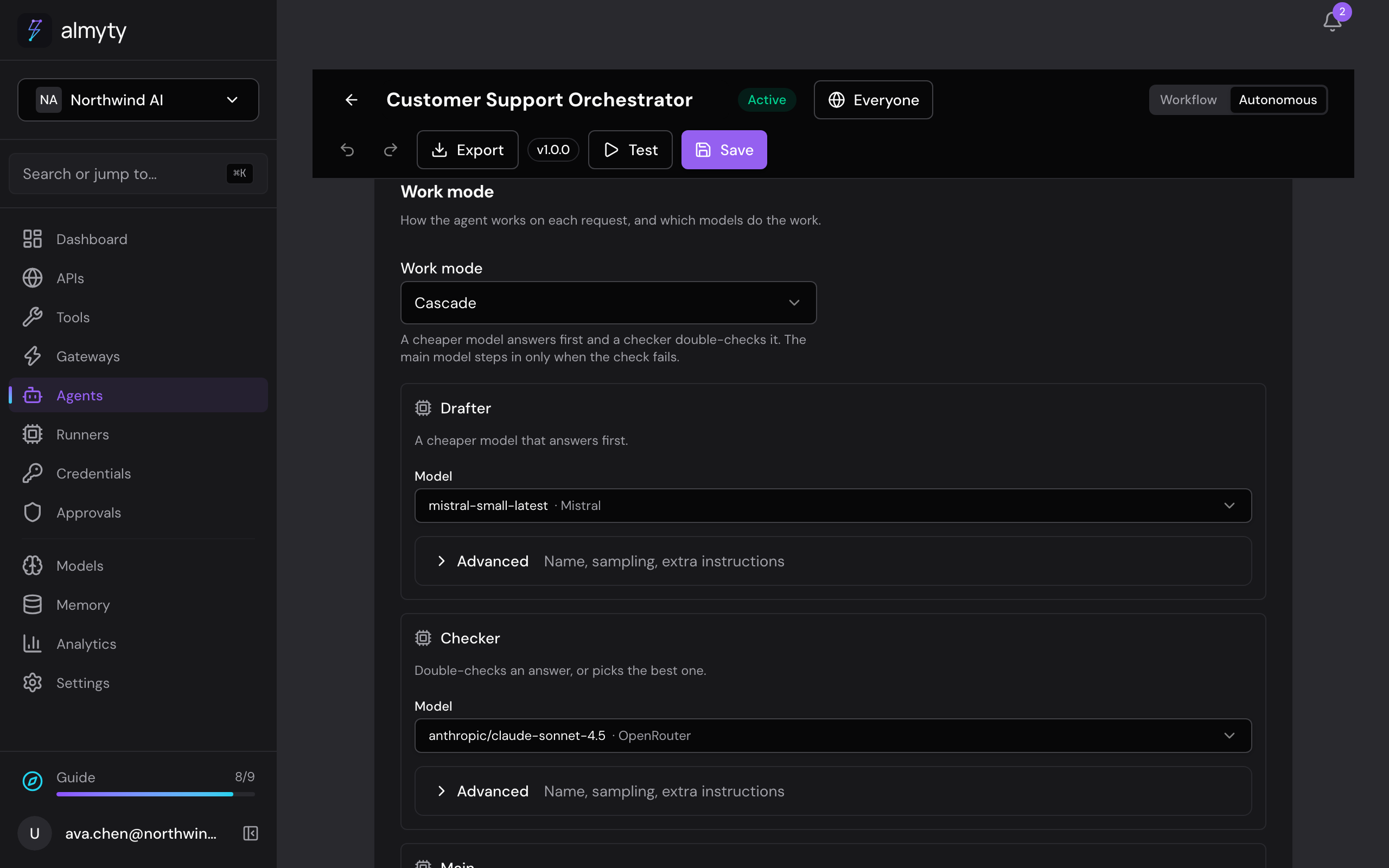
- 5
Put it where people are
Your agent → Channels → Add channel
Start with a Web chat: a chat page with its own address. Set the name, colour and greeting people see, then press Publish. The link works straight away.
When you are happy with it, add the chat bubble to your website, or Slack, Teams, WhatsApp or email. It is the same assistant everywhere.
northwind-help.almyty.app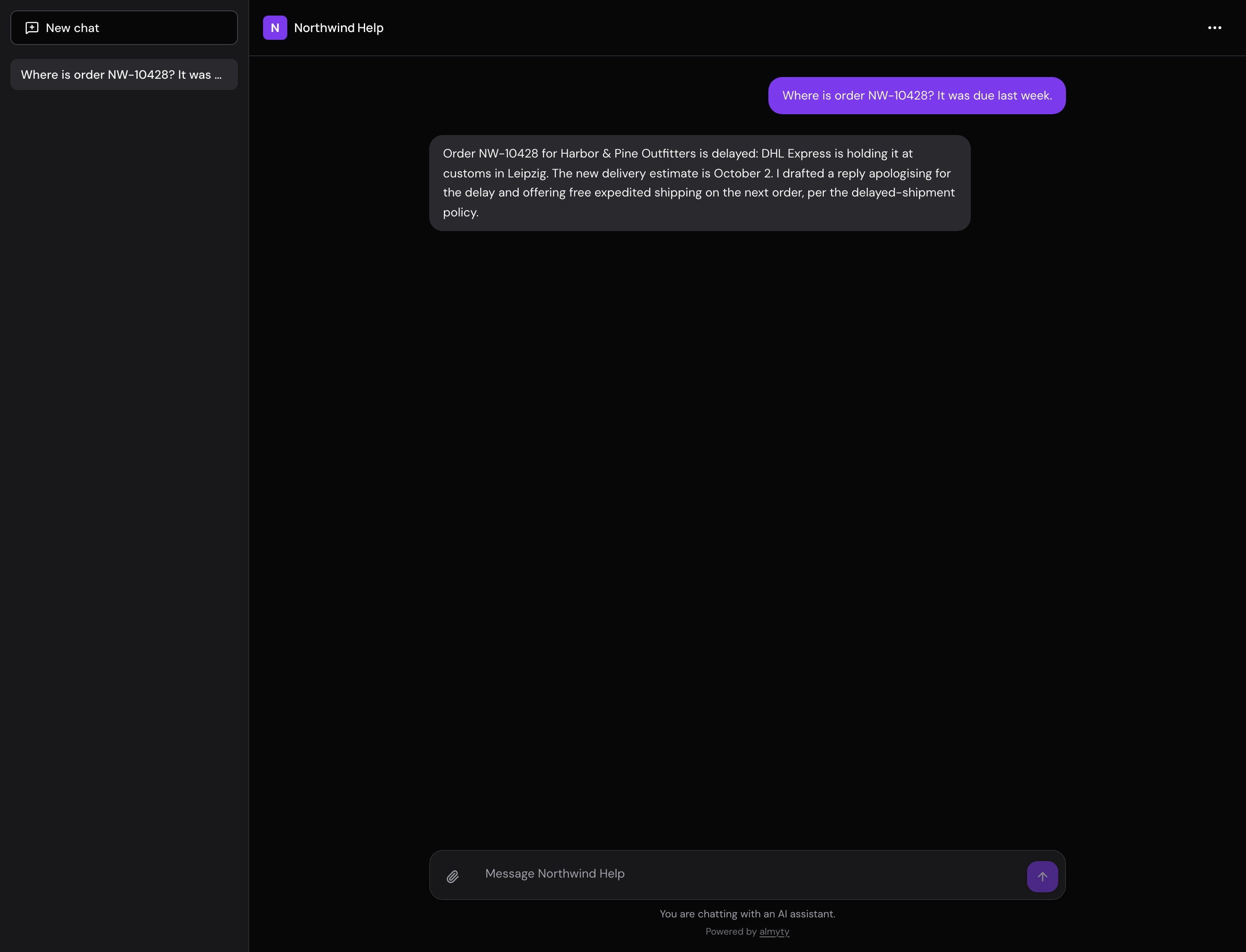
Want every click, with pictures?
The full guide in the docsStuck on connecting a system?
That first connection is the only step that can need a technical hand. Tell us which system you use and we will help.